LA week 9 – Know your camera Q1 & Q2

Question 1
Observation and analysis (2 hours)

After reading the appropriate section in your prescribed textbook From Snapshots to Great Shots, please answer the following questions:

  • Name all the functions / buttons on the front of your camera
  • Name all the functions / buttons on the back of your camera
  • Explain how you would set the correct ISO
  • Explain how you would change the aperture
  • Explain how you would change the shutter speed
Top of camera
Back of camera
Front of camera

My camera is a Canon EOS 600D.

How to set the correct ISO:
While the camera is on; press the ISO button and use the main dial or the arrow buttons on the back of the camera to change to the ISO you would like to use.

How to change the aperture:
While in Av (Aperture priority) mode or Manual Mode, use the Main Dial to change the aperture setting. You can see it change on the LCD screen on the back of the camera.

How to change the shutter speed:
While in Tv (Time Value or shutter priority) mode, use the Main Dial to change the shutter speed. While in Manual Mode, press the Av-button on the back of the camera while using the Main Dial.

Question 2
Practical assignment (1,5 days)

  • Watch the video on LinkedIn Learning. Explore your individual camera according to the lessons.
    Introduction to Photography: The Camera by Ben Long (1h 52m)
  • Complete the exercise files in Chapter 1 and 2 from your From Snapshots to Great Shots textbook
  • Take five pictures every day for the next five days. The subjects of your pictures can include a series of different objects, people and landscapes. Apply the manual settings as explained in your textbook. Submit your six best pictures at the end of the week, listing the following with each picture: 
    – ISO 
    – Aperture 
    – Shutter speed

It will be to your advantage if some of your pictures showcase motion blur and depth of field. In other words, I would like to see that you’ve experimented with the different exposure settings that were discussed in this module.

Getting to know the camera I’ve had for many years has been just great! I mean, I always loved taking photos, but I never really knew what I was doing. Not completely, anyway. I still don’t, but I’m getting there.

I have tried playing around with the settings. Things does not come automatically to me, will they ever? But I feel I do understand a lot more about my camera, and I will keep practicing to get better.

In the six images I have chosen you will (hopefully) see that I tried different settings, playing with depth, trying to get motion blur or a blurry background of portraits.

ISO 100 – f/9.0 – 1/20 sec
ISO 100 – f/10 – 1/25 sec
ISO 100 – f/5.6 – 1/125 sec
ISO 100 – f/7.1 – 1/125 sec
ISO 200 – f/5.6 – 1/800 sec
ISO 100 – f/14 – 1/15 sec

Resources:
“Canon EOS Rebel T3i/600D – From Snapshots to Great Shots” – Jeff Revell, 2011, Peachpit Press
https://photographylife.com/

LA week 8 – History of Photography – Q1 and Q2

Practical Assignment (research and analysis) (1 hour):
Pick three events in the timeline from this week’s lesson History of Photography: An Introduction, and find photographs of the event on the Internet or in the library and write a paragraph explaining the event in more detail. Include your photographs in the description.

The Camera Obscura
Much like the human eye, the camera obscura has an opening, a lens and a surface where the image is formed. The Camera Obscura was in the beginning used as an aid for painting and drawing, and would help capture the details. It went from large as a tent or a building to more portable versions. It was a precursor to moderne photographic cameras.

Photogenic Drawings
The english photographic pioneer William Henry Fox Talbot discovered the first photographic process where negative images were put on paper. The process was quite lengthy, and included light sensitive paper and silver nitrate. Talbot later published a book called “The Pencil of Nature” with six pictures in it, and it was a great event both for the art of photography but also for the printing business.

The Kodak Camera
George Eastman invented the roll film, and changed the art of photography. Kodak made it possible for ordinary people to afford a camera, and the tagline “Kodak Moment” is to this day a frase everyone understands as an important moment worthy of remembering. Eastman started with making dry plates and the Kodak brand still exists today.

Research, written and practical assignment (3 hours):
Throughout this lesson you’ve learnt about the various techniques used and inventors that contributed to the art form that is Photography. Choose only one, do some additional research and in your own words write a report on why you think the chosen technique contributed to what we are able to do today through photography.

  • Explain your research and choice of technique.
  • Include any images which you think are necessary to explain your thought process.
  • This should be 500 – 1000 words.

Tintype

Tintype came from Ambrotype, which started as a spinoff from the Daguerreo process. Ambrotypes are positive-looking images on glass made from the collodion process. They were usually displayed in similar keepsake cases as daguerrotypes, and were also one of a kind images. They were often lacquered on the back or put against a black background such as paper or fabric to enhance the way the negative bleached effect looks positive against the dark.

The tintype was essentially an ambrotype, but instead of glass, the tintype was made on a thin sheet of iron. The iron was coated with a black layer and then another layer of collodion prior to exposure. They were usually coloured by hand.

Before the tintype photography the process of photography was lengthy. Exposure times were long and the developing methods complex. The art of tintype photography changed that. Tintype photography being both quicker and cheaper, allowed photographers to get out of studios and take pictures anywhere and everywhere. This allowed the regular man in the street access to this incredible art. Tintype photos were often sold at fairs and carnivals.

The cases that came with the tintype photos changes the way photos were used. The cases had hooks to hang on the wall or legs so that they could stand on a table. From being a keepsake, photos now became a part of the décor, to be looked at on a daily basis. Being unbreakable also ment it was easy to put the tintypes in your pocket, and often one can see tintypes having their corners rounded, so not to poke holes in your pocket.

During the Civil War in America, soldiers were able to take their photos and send back to their loved ones. The nature of tintypes, sturdy and rather lightweight made them perfect for this. Taking a picture of yourself, giving it to someone you love was a beautiful way of immortalising yourself and making sure you would never be forgotten. It’s no wonder photography quickly became popular. 

There are many apps available that can make the photos you take today on your mobile phone look like tintypes. I have used the free app TinType by Hipstamatic for several years. Here’s a few examples that I made today:

During my research I found that most tintypes preserved were of soldiers. Most of the cases surrounding the tintypes have not survived time, but the tintypes themselves seem to “live forever”. I found that the American Library of Congress had a wide collection online, so I took most of my pictures from their website. It was easy to get appropriate file sizes and the pictures were clearly marked. All of them are credited in the resources below.

I find this technique very interesting because the photos seem to survive time quite well. How can we be certain that the digital formats we use today will make sense to anyone 200-250 years from now? I am quite sure that paper copies will not be around that long, they will wither and deteriorate, which we have already seen with many of the techniques that have come after tintype up till today. Tintypes will probably be here when digital photos no longer are. And digital media rely on several things to be used, as computers or other devices needing power. Tintypes do not. Paper copies do not either, obviously, but they are so fragile. My fascination with tintypes started many years ago, but I never researched it properly, so this was an interesting assignment.

Photos:
Camera Obscura (1): https://www.inquirer.com/philly/entertainment/20160806_Camera_Obscura_at_Fleischer_throws_new_light_on_photography.html
https://en.wikipedia.org/wiki/Camera_obscura
Modern day Camera Obscura (2):
http://By The Bearded Man – Own work, CC BY-SA 3.0, https://commons.wikimedia.org/w/index.php?curid=18406149
https://www.parisphoto.com/en/Glossary/Photogenic-Drawing/
Photogenic drawing (3):
http://allirabent.blogspot.com/2011/03/photogenic-drawing.html
Photogenic drawing (4):
https://www.josephbellows.com/exhibitions/carol-panaro-smith-james-hajicek?view=slider#3
Eastman plates (5):
http://By Jill House – Own work, CC BY-SA 4.0, https://commons.wikimedia.org/w/index.php?curid=76029054
Folding Pocket Kodaks (6):
http://By Eastman Kodak Co., Rochester, NY – “Outing” (magazine) Vol. XXXVI, No. 5, August, 1900. p. xxix. New York: The Outing Publishing Company”The Cooper Collections ” (uploader’s private collection)Digitized by Centpacrr, Public Domain, https://commons.wikimedia.org/w/index.php?curid=27682350

Tintype (7):
http://By unknown(Life time: unknown) – Original publication: unpublishedImmediate source: The image was digitized at Gawain Weaver Art Conservation, PD-US-expired, https://en.wikipedia.org/w/index.php?curid=36457305
Tintype (8):
https://www.loc.gov/item/2006689561/
Tintype (9):
https://www.loc.gov/item/2010648759/
Tintype (10):
https://www.loc.gov/item/2006688342/
Tintype (11):
https://www.loc.gov/item/2016653260/
Tintype (12):
https://www.loc.gov/item/2006688339/
Tintype (13):
https://www.loc.gov/item/2006689630/
Tintype (14):
https://www.loc.gov/item/2010648384/
Tintype (15):
https://www.loc.gov/item/2010648773/
Tintype (16):
https://www.loc.gov/item/2010648781/
Tintype (17):
https://www.loc.gov/item/2010648800/
Tintype (18):
https://cdn.loc.gov/service/pnp/ppmsca/51900/51950v.jpg

Other resources:
https://photofocus.com/photography/ambrotypes-and-tintypes/
https://mymodernmet.com/tintype-photography/
https://en.wikipedia.org/wiki/Tintype
https://www.loc.gov/collections/liljenquist-civil-war-photographs/articles-and-essays/ambrotypes-and-tintypes/
http://www.phototree.com/id_tin.htm


LA week 7 – Colour Theory – Q3

Question 3
Practical Assignment (1 day)

  • Design a book cover for one of the following:
    a.) “Rosemary’s Baby” by Ira Levin: use complementary colours to express anguish and uncertainty.
    b.) “Animal Farm” by George Orwell: use analogous colours with a contrasting accent to express disagreement and discontent.
    c.) “The Secret Garden” by Frances Hodgson Burnett: use secondary colours to express naivety, honesty and harmony.
  • The book cover must contain the title and the author’s name.
  • You must clearly make use of colour to express the desired effects.

These were the colours I worked with, screenshot from Adobe Color:

Sources / references:
https://en.wikibooks.org/wiki/Basic_Book_Design/Page_Size

LA week 7 – Colour Theory – Q2

Question 2
Practical assignment (5 hours)

Use a colour photo of your choice and create the following colour effects (as per Nigel French’s video) – you should hand in four separate works of the same photo with the following effects:

  • Create a fluorescent duotone
  • Apply a monochrome look
  • Split toning of the image
  • Freestyle: Create a colour effect of your choice
Original
Fluorescent duotone
Monochrome
Split toning
Freestyle

For my freestyle color enhancement I chose to focus on making the sky more detailed by making better contrast. I used the technique described in Nigel Frenchs video. To compare the before and after, have a look at these screenshots together:

As I am completely new to Photoshop this was very challenging, but again; Loads of fun! Scratching the surface, barely, and I can’t wait to learn more!

Resources:
https://www.linkedin.com/learning/photoshop-for-designers-color-2/welcome?u=43268076

LA week 7 – Colour Theory – Q1

Question 1
Research and written assignment (3 hours)

  • Having watched the video with Nigel French – describe, in your own words, what each of these colour systems means: RGB and CMYK.
  • Make use of Adobe Colour and develop four different colour schemes. Please hand in screenshots of your schemes:
    • Monochromatic
    • Complementary
    • Triadic
    • Analogous

RGB stands for Red, Green and Blue. RGB is the color system used for onscreen media. RGB is the additive colour method and it appears brighter.

CMYK stands for Cyan, Magenta, Yellow and Black (or rather Key). CMYK is the colour system used in printing. CMYK is the subtractive colour method.

Monochromatic colour scheme:

Complementary colour scheme:

Triadic colour scheme:

Analogous colour schemes:

MA02 – Logo

Okay, take a deep breath! The Logo assignment has been delivered!

Wow! I mean, just wow. So much information, so much to learn! There has simply not been enough hours in the day to watch all the LinkedIn Learning videos I wanted to watch, while playing around in InDesign and Illustrator. Though, all those hours I did spend on LinkedIn Learning, taught med so much! I now know that making the choice of studying online was the right thing for me. It’s hard! Time-consuming and overwhelming at times too. But I love this way of learning. I love it! Yay!

So, now the MA02 assignment has been delivered. The assignment was as follows:

Screenshot from my report

We were to make a logo for the fictitious company Food & Malt. There were moodboards:

Moodboard on Dude Food
Moodboard on beer

In my report i described the process of making my logo, from the research on the competition to the actual drafts I made. I started with sketching on paper (and no, I’m not very comfortable letting everyone see my horrible drawing skills, but still):

I love typography! I made these simply to see the company name in different fonts.

I had a few (a lot) ideas along the way. Some of them looked like this:

And the final product looks like this:

For the first time I also made a Brand Style Guide. I have never made mockups before, so still got a lot to learn there, among other things. I bet there will be a lot more of that…

So, listing what I learned is impossible, it’s so much! I have a few things I’m disappointed with. The report not being in InDesign is the main one. But panic struck as I was using days and it still didn’t look anything like presentable. So there’s so much more to learn, but what I already learned… It’s a lot! And I’m loving it!

Did you really get all the way through this post? Then you get to know where I found all this information. Thanks for reading!

Sources and references:

Moodboard Beer – all pictures from Pinteresthttps://no.pinterest.com/pin/745627282036425964/
https://no.pinterest.com/pin/420312577725058397/
https://no.pinterest.com/pin/361413938824915948/
https://no.pinterest.com/pin/756252962403881115/

Moodboard Dude food – all pictures from Pinteresthttps://no.pinterest.com/pin/489203578265207474/
https://no.pinterest.com/pin/551198441880481033/
https://no.pinterest.com/pin/314970567693662496/
https://no.pinterest.com/pin/195273333822812914/

Screenshots and information from Naboen Pub & restaurant website: https://www.grannen.no

Information and screenshot of logo from Henriks øl og vinstove website: https://ve.no/index.html

Information and screenshot of logo from Spisekroken website: http://www.spisekroken.no

Information about Bergen municipality

Videos: 
From YouTube: How to create a moodboard using Adobe InDesign – Rebecca Hawkes. 
From LinkedIn Learning: 
InDesign Typography Part 1 with Nigel French. 
InDesign CC 2019 – Essential training with David Blatner. 
Logo Design: Techniques with Nigel French. 

Books: 
Slagkraft – håndbok i idéutvikling – Erik Lerdahl. Gyldendal Norsk Forlag AS 2007. 
Logo Design Workbook – a hands-on guide to creating logos – Adams, Morioka, Stone, and Hopkins. Rockport Publishers 2004. 
Graphic Design School – the Principles and practice of graphic design – Dabner, Calvert and Casey. A Quarto Book 2010.

Other resources: 
Wheat stalk vector used in logo from www.vecteezy.com.
Business card mock up used in Brand Style Guide from www.vecteezy.com
Key chain mock up used in Brand Style Guide from www.vecteezy.com

LA week 6 – designing a Gig Poster

Working with typography in expressive layout (2-3 days)

Design a poster for a band’s gig. The band is called: “The Keystrokes.”
You can decide the name of the band’s tour and remember to include a date, a time and a venue.
You can use a visuals and/or typography to design the poster and remember to make the type work with the rest of the design. Show us your type skills in this one.

Use an A3 format at 297 x 420mm.

Expand your design to include a pamphlet that outlines dates and further details of the tour i.e. merchandise available: T-shirts, caps and CDs or a promotion – Free drink on arrival.
Remember this design must be consistent with your poster design. The pamphlet can be any size or format. Have a look online for inspiration.

This is my gig poster. I would have liked to add some structure as shown in the LinkedIn videos for this weeks LAs, but I struggled with finding free extensions relevant that would work on the latest version of Photoshop and/or Illustrator. I feel there’s a lack of depth/dimension on this poster, so I will definitely work on that for the future.

My main inspiration for the poster was the name of the tour; The Digital Tour. I used a picture of an Apple keyboard as base for the name of the tour. I used the font Moby regular for the band name. Typeface Source Code Variable is used for the rest of the poster.

The pamphlet I made is a B5 size, print on both sides. I used the same typeface, art and colors as on the poster.

Sources:
https://dictionary.cambridge.org/dictionary/english/keystroke
http://www.apple.com

LA week 6 – The Anatomy of Type

Part of this weeks LAs was to make a visual presentation of the anatomy of type. This was again a great way of getting to know Illustrator, there was a lot of tiny details to work on. Very useful! And I hope all the names will stick.

Sources:
Graphic Design School – the principles and practice of graphic design, pages 66-68.

LA week 6 – Expressing meaning

This week the topic is Typography, which I LOVE! So much fun learning the “rules of engagement” though a bit overwhelming. I know this will have to stick, like forever, so really trying to soak it all up.

Question one:
Create a new word; one which has no dictionary definition and a meaning that only you know. For example, the word we came up with is “roleean”, it doesn’t appear in the dictionary, but it means, “round and leaning to the left”. You could decide on your own word with its own meaning. With regard to our new word “roleean”, this might involve emphasising or dramatically enlarging the letter “o” within the word, and using italics, allowing the letter to lean to the side.

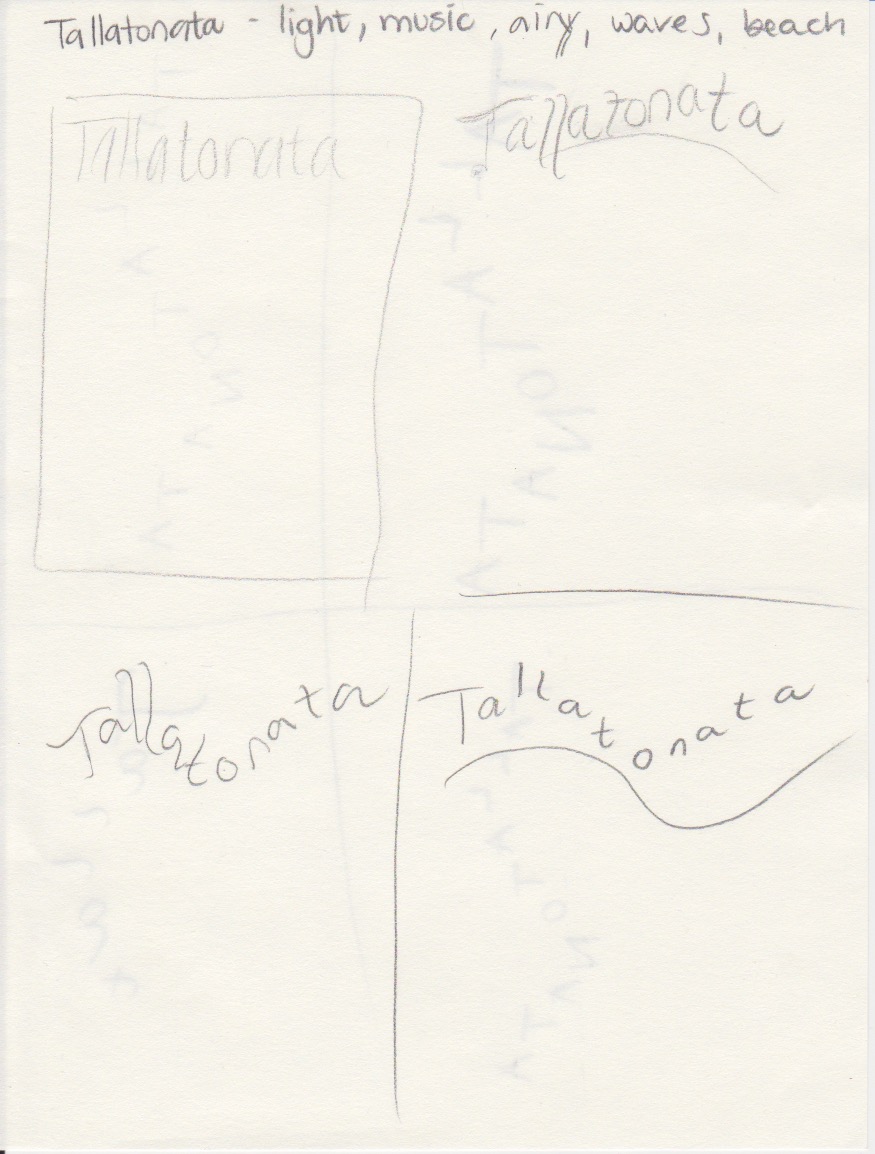
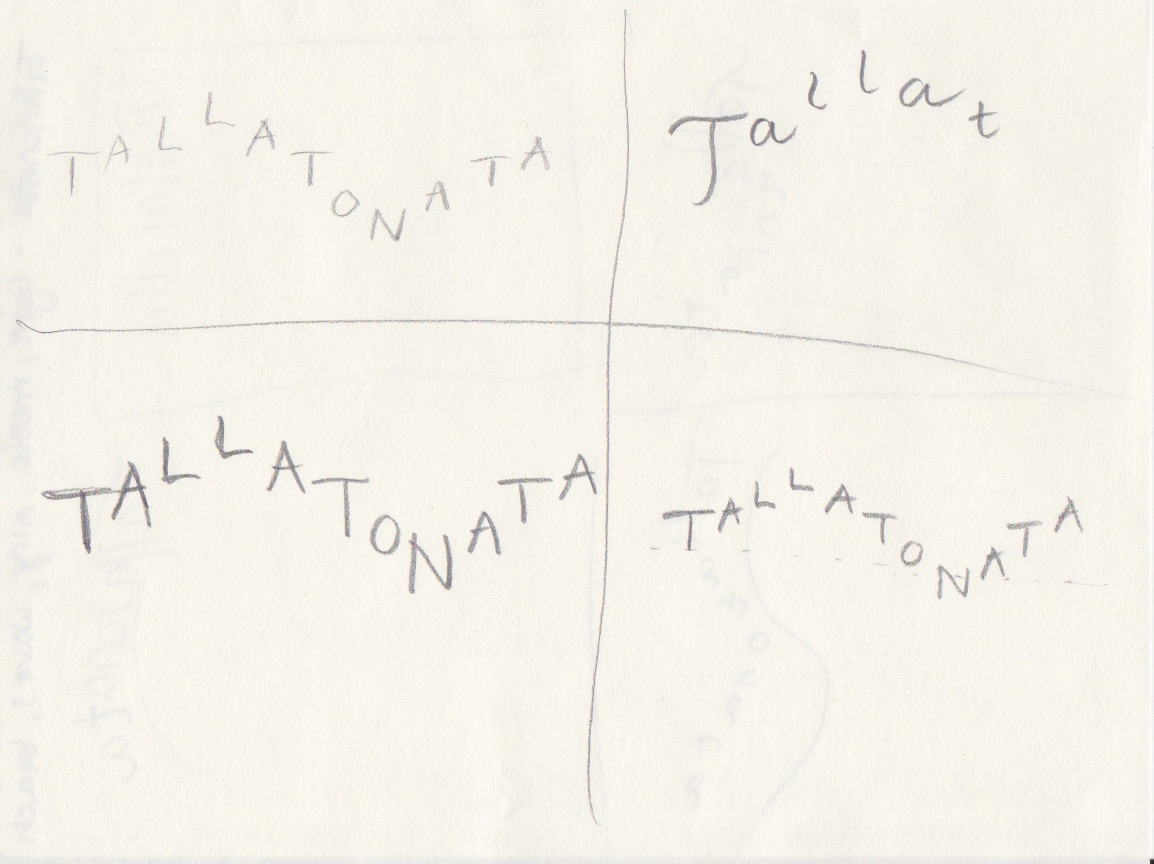
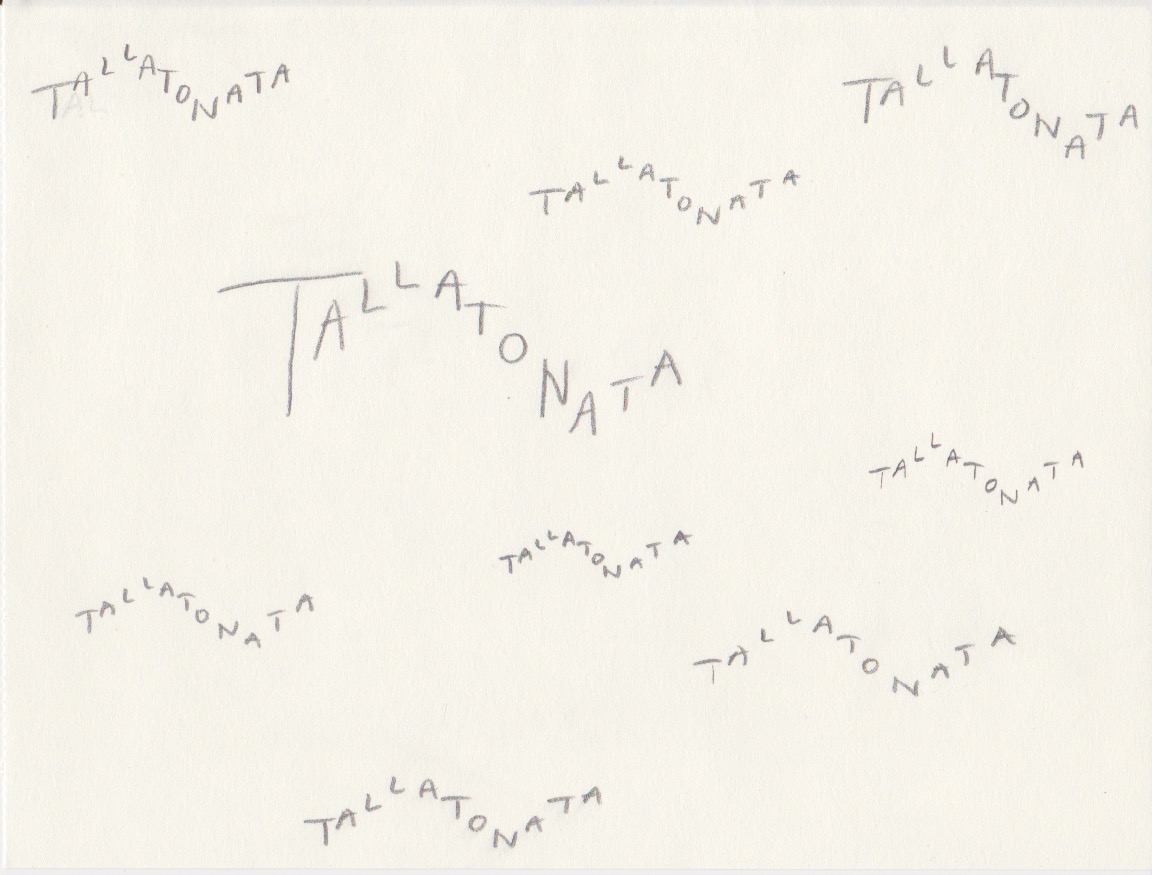
Oh, this was hard! I made a few words, googled them and realized I am not at all as inventive as I thought I was. However, I did finally come up with a word that does not exist. The sound the waves make when they hit the beach is called:

“Tallatonata” is a long word, and I wanted to use the length to symbolize the waves. The idea was quite simple, but yet it took a lot of trial and error to end up with this version. I searched for a font that was light enough for this feeling, and that would form well as waves. It’s called Amatic SC, and I downloaded it from Creative Cloud. I used different tracking and sizes, and also made a couple of them in Bold.

Question 2
Now choose two extra words from the list below:

  • Fluffy
  • Falling
  • Slimy
  • Agony
  • Sailing
  • Rock-Solid
  • Loading
  • Pizzaz
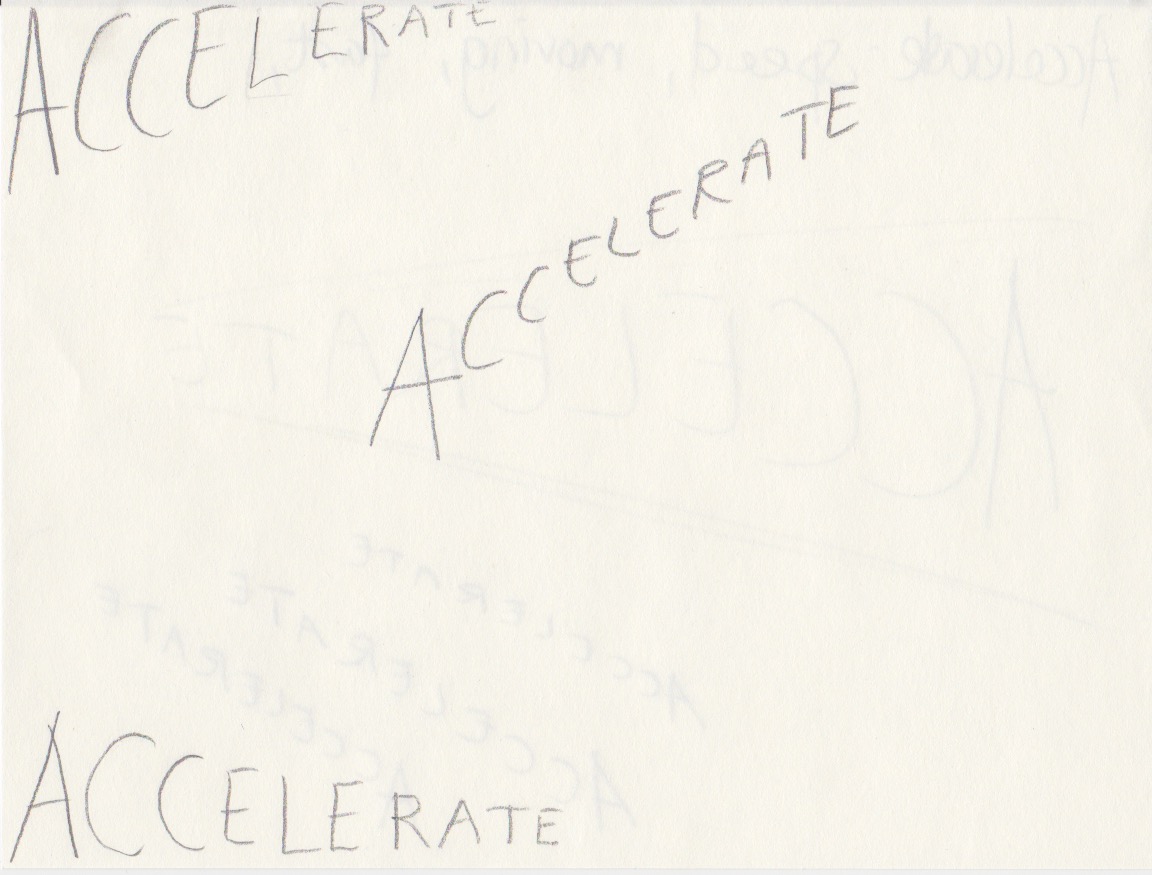
  • Accelerate
  • Elevate
  • Create
  • Inspect

Create three different compositions, showcasing your three words, one word per composition. In each composition, arrange each individual word to express its meaning, using only the colours black and white. Consider all and any means at your disposal: dramatic scale contrasts, cutting, repetition, letter spacing, etc. Each composition should fit onto an A4 format. You can play with the size, spacing, placement and orientation of letters while being cognisant of how the word(s) interact with the entire format.Consider the entire format as an important design element: use all available space; don’t simply centre the word – think of this as an opportunity engage the viewer throughout the entire layout. Experiment. Play. Push to the edges of the page. Repeat elements if it helps to get the meaning across. Choose a very simple creative solution, if you find this direction more appropriate.Make sure to only use one typeface for each composition, noting the suitability of the choice of typeface to the individual word; you can experiment with various styles (light, bold, condensed, uppercase, lowercase). You may repeat, omit, slice, block or overlap words or letters. However, please do not use drop shadows or similar computer-generated effects.

I chose the words Accelerate and Fluffy.

Accelerate:
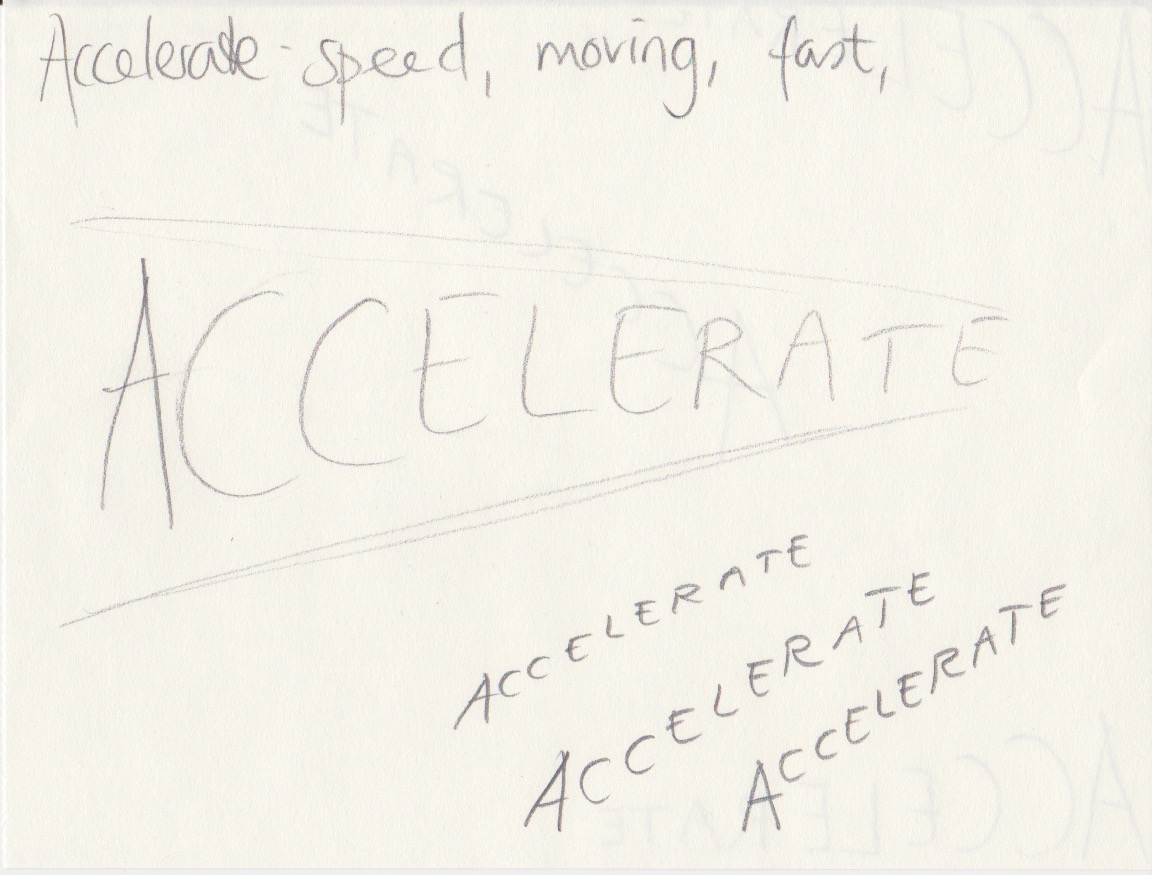
I wanted to make the word seem to actually speed up. I used baseline shift, while also making each letter smaller. A lot of doing and redoing, but I felt the result was okay. The typeface I used, again from Creative Cloud, was Aviano Future, and I ended up with Black Fast. All of the fonts from this typeface marked “fast” leaned to the right and felt appropriate for this word. I placed the word at the bottom of the page. Possibly a frame would have made that clearer, but as it wasn’t mentioned in the assignment, I left it like this.

Fluffy:
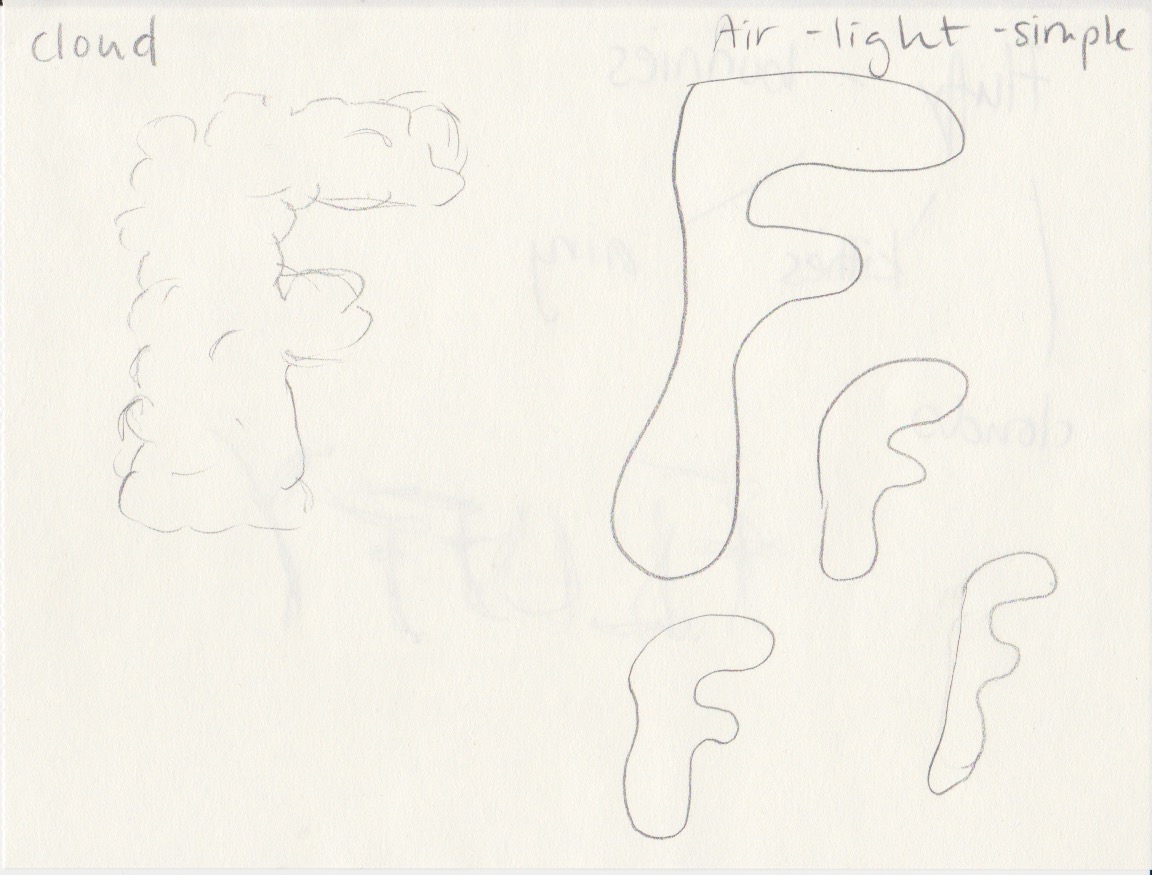
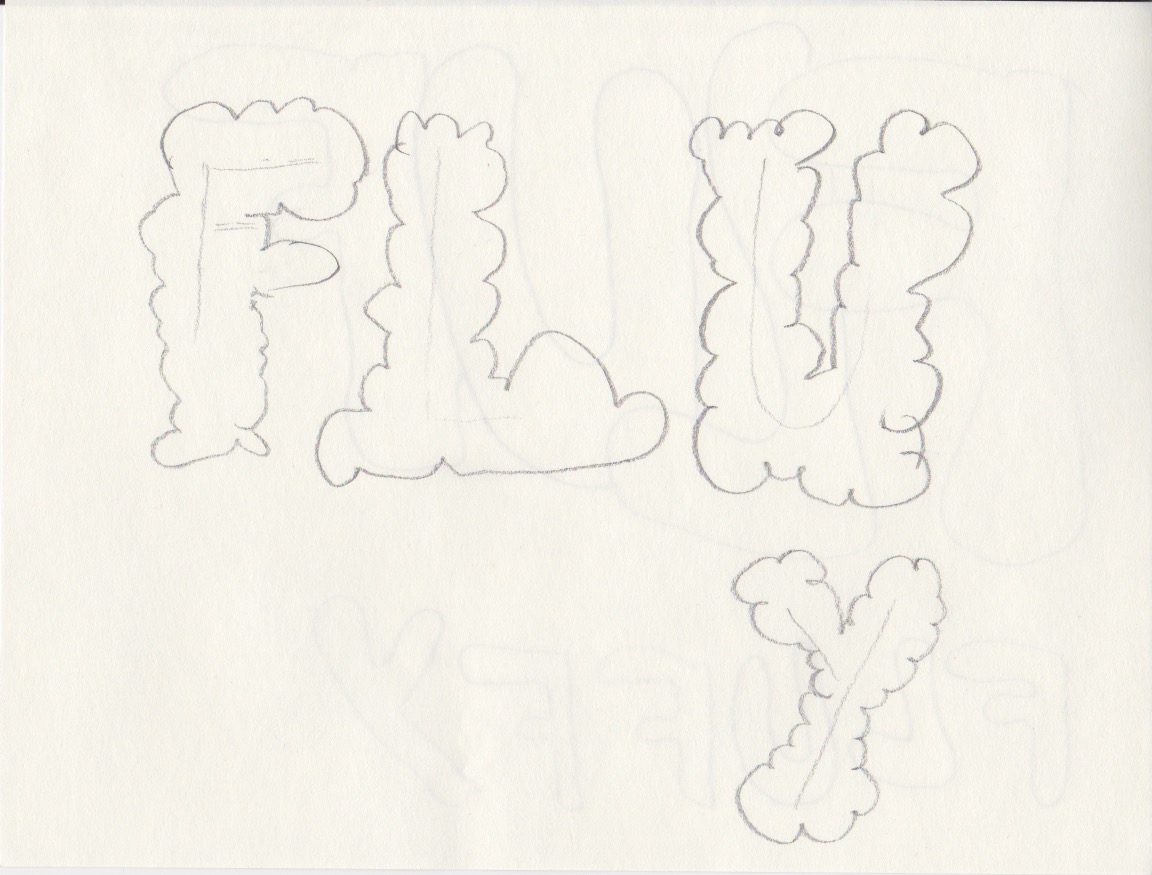
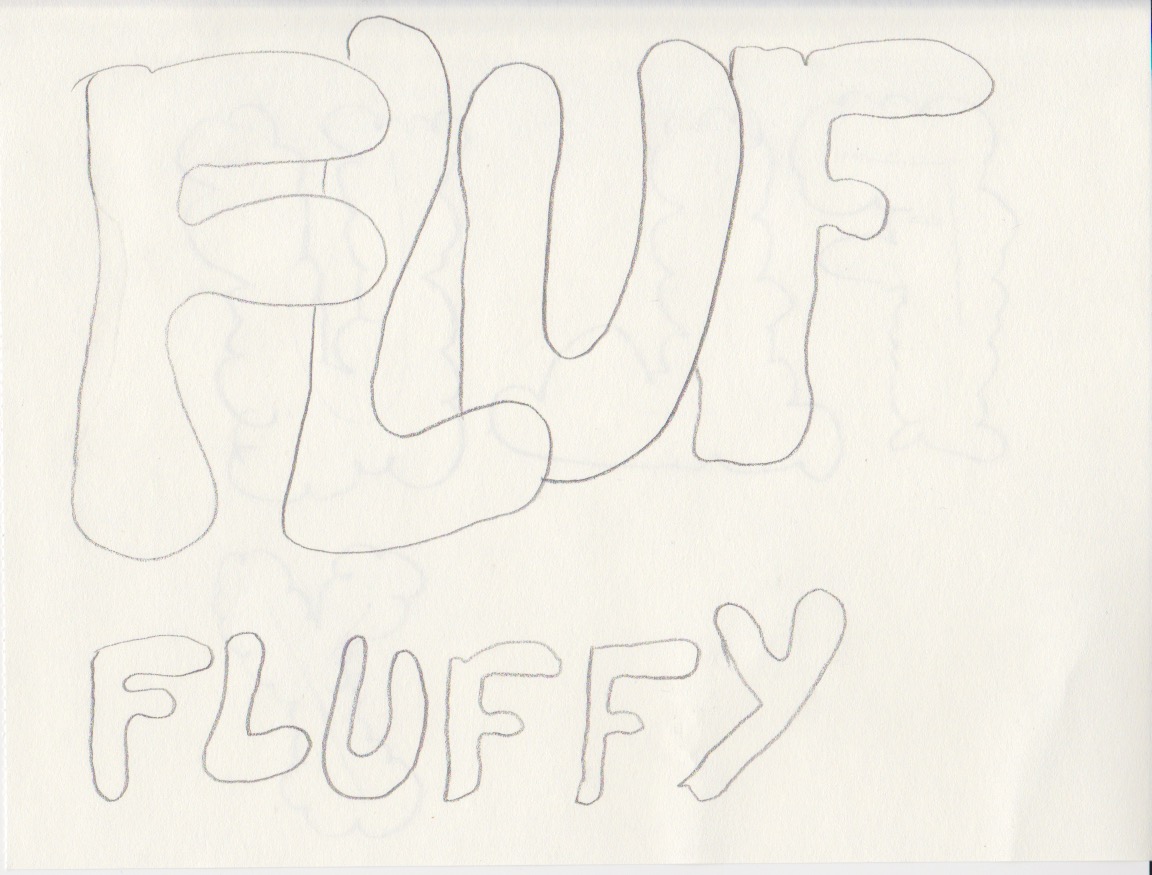
The typeface I chose for Fluffy is called Bubblegum Pop and I ended using “Shadow”, which to me was the most fluffy font I could find. I filled the entire A4-page with the words, and I like how it looks. Again, I tried a whole lot of different settings. At first I thought I would only have the word once on the page, but playing around I felt like this works better.

Question 3:
You will need to supply all your preliminary sketches and ideas along with the final layouts – the foundational process of drawing by hand is important. You can start your project and explore ideas by tracing letters, cutting and pasting computer-generated words, photocopying or photographing; be inventive. Later, once your ideas are developed, you can use a program such as InDesign or Illustrator to rework and refine the design. Take time to consider the various options; don’t just do the first thing that pops into your mind. Explore all possibilities for enhancing your ideas.

I worked in InDesign, and it’s a first. Loved it. Just barely scratched the surface here with a few helpful videos from LinkedIn Learning, but oh, this is going to be so much fun!

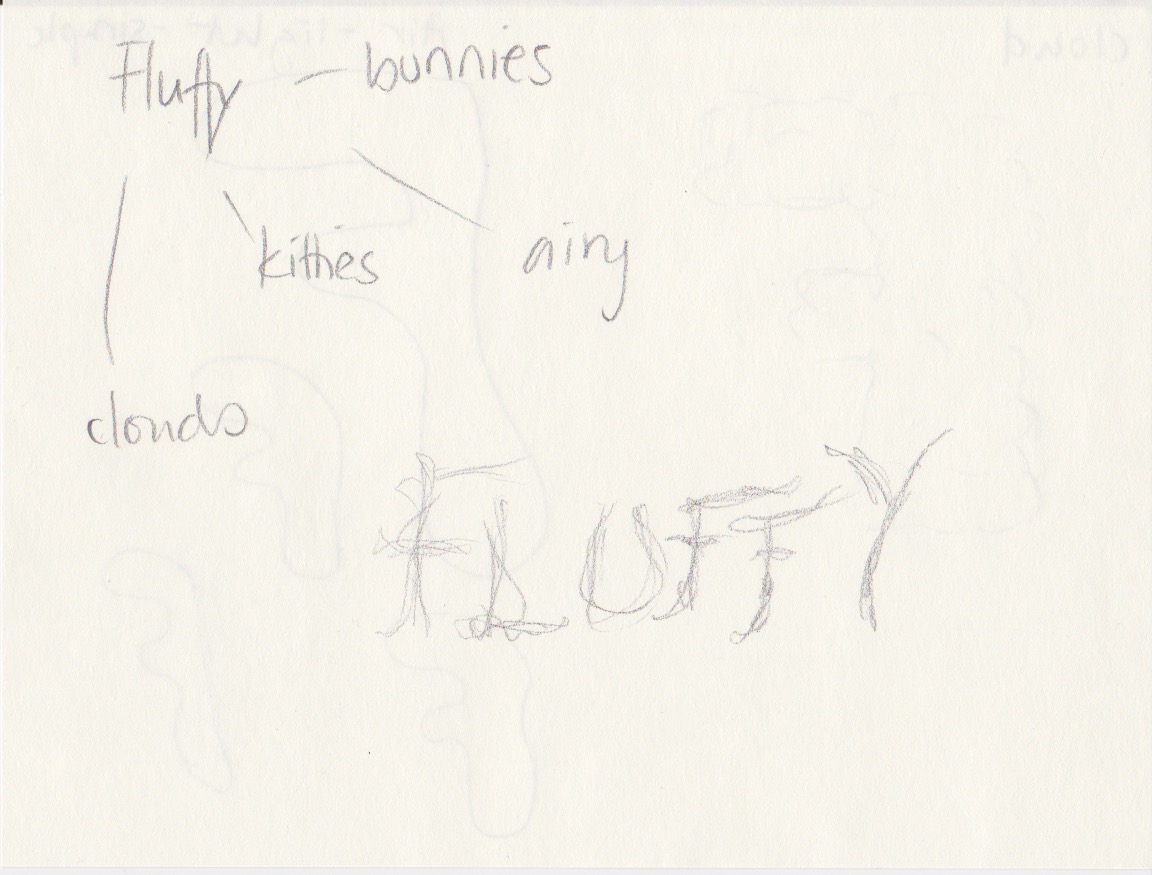
My sketches are seen below:

LA week 04-05 – Create a logo using gestalt principles

1. Look at the following logo and consider the shape, form, simplicity of design and the way it communicates.

The simple U-shape of the Unilever logo is easy to recognize, no matter the size of the logo. Looking closer at the logo you get a feeling that the symbols which the U is made up of, each have meaning. On Unilevers website you can read about each of these symbols and what they represent. The simplicity of this logo, combined with each of the symbols carrying meaning for this company, makes a great logo!

2. In your own words explain what you consider the different Gestalt principles in this logo to be. Describe the logo and justify your answers.

In this logo I see Proximity (related elements are grouped together to form a whole). As the logo is not closed, one could also say that Closure is used, and it’s wellbalanced, so Symmetry also applies.

3. Pick any 3 Gestalt principles and recreate 3 versions of the logo according to your chosen principle. Be creative and innovative with how you do it. Sketch, plan, and do it by hand before digitally creating your favourite option in a vector format.

Using the Proximity gestalt principle I feel the heart and the name of the company came together quite well in this logo. The heart represents the company and it’s core, their love for the environment and wanting to provide customers with everything they might need.

The Continuation principle was the idea behind the arrows in this logo. The arrows indicates that this company thinks ahead, has high standards, high goals and wants to achieve more.

The Closure principle, where we fill in the gaps, was the idea here. The big “U” could stand alone and is easily recognized.

4. Your entire process, including sketches and research, need to be loaded on your blog as part of this learning activity.

From MA01 – Design Principles:
Figure / Ground: What is in the foreground and what is in the background?
Continuation: (Continuity: We follow the lines) Once the eye begins to follow something, it will continue in that direction until it encounters another object.
Closure: Viewers can fill the gaps to see the full picture.
Proximity: Related elements are grouped together to form a whole. (Grouping: We tie objects that are near each other together.)
Similarity: We link similar elements together.
Symmetry: Elements are arranged equally on both sides of an axis.
Common Fate: Elements that move in the same direction are seen to be related. Think of a flock of birds.
Prägnanz: We tend to reorganise complex shapes into a simpler whole.

Resources:
https://www.unilever.com
https://visme.co/blog/gestalt-design-principles/
https://www.logolounge.com

Design a site like this with WordPress.com
Get started